Zoho Mail Admin Console: Domain setup and management

Your domain is the identity your business runs on. Every email your team sends carries it, and every client, vendor, or lead who receives that email forms a first impression from it. That’s why using a domain that represents your business matters.
But having a custom domain is only the first step. Get the setup right, and your emails are recognized as legitimate, land where they’re supposed to, and reflect your brand the way you intend. Get it wrong, and even genuine communication can end up flagged, delayed, or lost before it ever reaches the right inbox.
In our previous post, we walked through the Zoho Mail Admin Console as a whole. This time, we’re going deep into one of its most important parts: domain setup and management.
From adding and verifying a domain to configuring authentication records and setting up renewals, here’s everything you need to know, and do, within the Admin Console to set your domain up correctly.
1. Buying or adding a domain
Before your team can send a single email from a company address, your domain needs to exist inside Zoho Mail. If you haven’t settled on a domain name yet, Zoho Mail’s Toolkit includes a Domain Name Generator that suggests available domain names based on your business name or a keyword, across TLDs like .com, .in, and .info, so you can shortlist options before registering one.
Buying a new domain
If you don’t already own one, you can purchase a domain directly from within the Admin Console. There’s no need to go to a separate registrar and come back to configure it.
Adding an existing domain
If you already own a domain, you can add it straight to your account and start configuring it for email right away.
Managing multiple domains
Organizations running more than one brand or business unit can add and manage every domain they own from the same window, instead of logging into different places to handle each one separately.
For growing teams and businesses managing multiple brands, this single-window setup means less coordination and fewer places where something can go wrong.
2. Verifying your domain
Once a domain is added, Zoho Mail requires proof that you actually own it before any email service on that domain can go live.
TXT or CNAME method
A unique verification value is generated in the Admin Console, which you add as a TXT or CNAME record in your domain’s DNS settings. Once it’s added and the DNS change has propagated, you confirm it from the Admin Console to complete verification.
HTML file upload
If DNS access isn’t available to you, an HTML file with the verification value can be uploaded to your domain’s web server as an alternative to editing DNS records directly.
Why it’s mandatory
This step confirms that you’re the legitimate owner or administrator of the domain. Until it’s done, the domain can’t be activated, and email services on it stay unavailable to your users.
3. Configuring your domain via Domain Connect
For domains hosted with supported registrars like GoDaddy, Zoho Mail offers a faster path than manually editing DNS records one at a time.
What it does
Domain Connect, also referred to as one-click verification, lets Zoho Mail automatically configure the DNS records your domain needs, MX, SPF, and DKIM, directly at the registrar, without you having to copy and paste values manually.
How it works
From the Admin Console, you choose the option to log into your DNS provider, authenticate with your registrar account, and authorize the connection. Zoho Mail then adds the required records on your behalf.
Why it helps
This removes the room for manual error that comes with hand-editing DNS, mismatched values, missed records, or incorrect formatting, and gets your domain verified and configured in far fewer steps.
4. Domain records: MX, SPF, DKIM, and BIMI
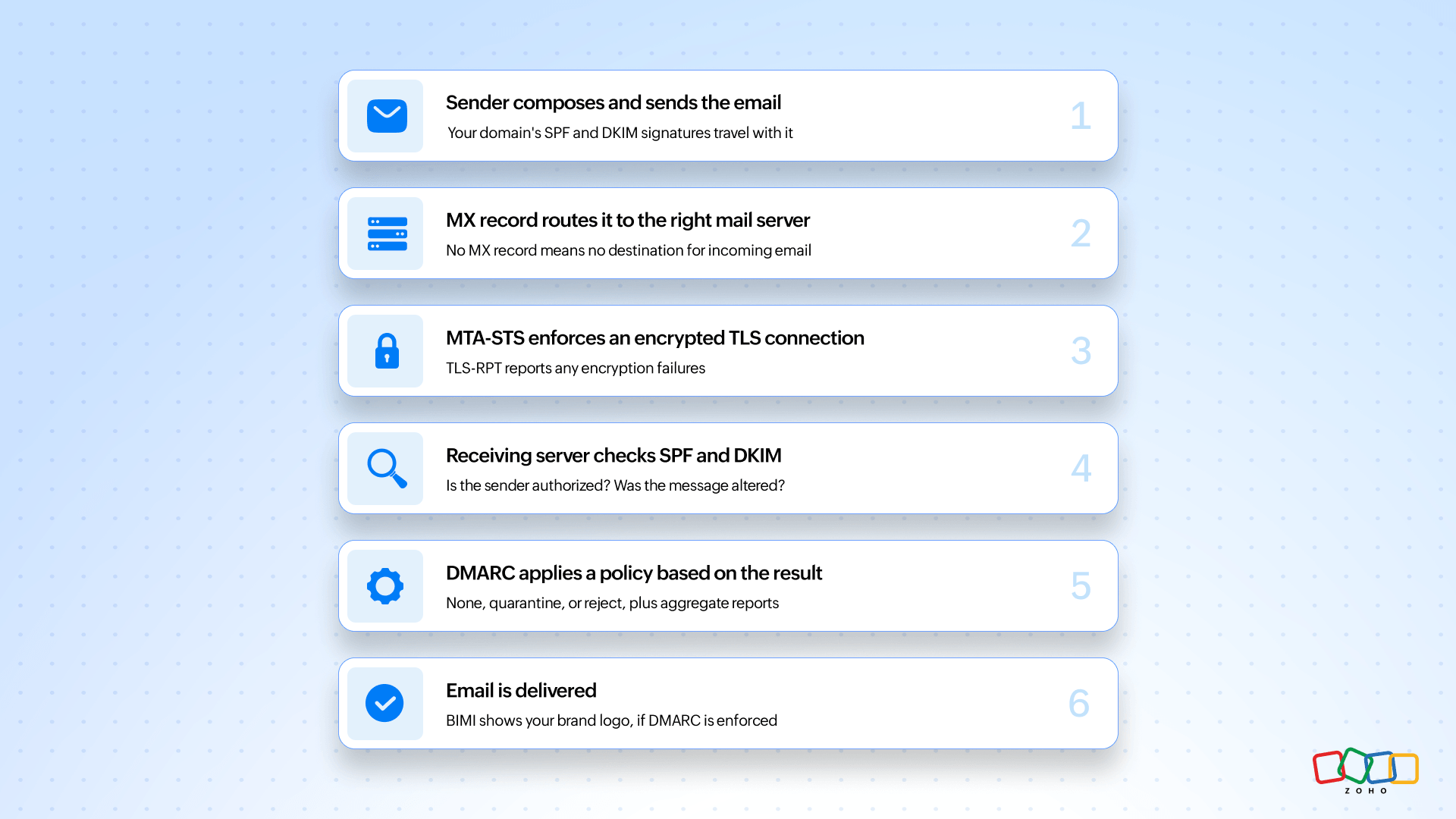
This is the part of domain setup that directly decides whether your emails are trusted or get flagged.
MX records
These records tell the internet where to deliver your incoming mail. Get this wrong, and your business simply doesn’t receive email.
MTA-STS and TLS-RPT
Beyond authenticating senders, Zoho Mail also lets you enforce encrypted delivery between mail servers through MTA-STS, blocking messages that can’t establish a secure TLS connection. TLS-RPT complements this by sending reports on any encryption failures, so admins have visibility into whether secure delivery is actually working as intended.
SPF and DKIM
These records authenticate your outgoing mail, confirming to receiving servers that an email claiming to be from your domain is actually from you. Without them, your emails are far more likely to be marked as spam or, worse, spoofed by someone impersonating your business.
DMARC
This builds on SPF and DKIM by telling receiving servers what to actually do when a message fails those checks. Admins can generate a DMARC policy and choose the action to take on failure, whether that’s taking no action, quarantining the message, or rejecting it outright.
BIMI
This lets your brand logo show up next to your emails in supported inboxes, giving your messages instant visual credibility the moment they’re opened.
5. Domain aliases and hosting status
Once your domain is added, the next thing worth setting up is how it connects to any other web addresses your business uses, and keeping an eye on how it’s hosted.
Domain aliasing
Businesses that own more than one website address, such as a regional domain or a rebranded one, can link it to their main domain. Emails sent to the alias land in the right inbox automatically, without needing separate accounts or manual redirects.
Subdomain handling
Larger organizations often run mail on a subdomain, like support.yourbusiness.com, alongside their main domain. Zoho Mail can strip that subdomain automatically and deliver the message to the matching address on your primary domain instead. So an email sent to someone@support.yourbusiness.com still reaches someone@yourbusiness.com, without needing a separate account set up for the subdomain.
Hosting status tracking
The Admin Console shows the current hosting status of each domain, so admins always know whether a domain is active, pending, or needs attention, without having to dig through DNS settings separately.
This matters most for businesses that operate under multiple web addresses, marketing campaigns, regional sites, or legacy domains, where customers may reach out through more than one address, but every message still needs to land in the same place.
6. Catch-all address
Even in well-run organizations, emails get sent to the wrong address more often than most admins realize. A misspelled name, an outdated alias, or a slightly wrong department address are all it takes for a message to bounce back and get lost.
What it does
A catch-all address captures any email sent to your domain that doesn’t match an existing user or alias, instead of letting it bounce back to the sender.
Why it matters
Businesses that deal with a high volume of external inquiries, sales leads, support requests, or client correspondence often lose potential opportunities simply because a message never reached anyone. A catch-all address prevents that by redirecting misaddressed emails to a mailbox that an admin can monitor and act on.
For customer-facing teams, this small setting can be the difference between catching a missed opportunity and losing it entirely without ever knowing it happened.
7. Renewal and transfer
A domain is only useful as long as it stays active, and Zoho Mail gives admins full control over how that continuity is maintained.
Renewal options
Domains can be set to renew automatically so there’s no risk of accidental expiry, or renewed manually if an organization prefers to control the timing and cost each cycle.
Domain transfer
If a business needs to move its domain to a different registrar, Zoho Mail provides a guided transfer process, managed entirely from within the Admin Console, so admins aren’t left piecing together registrar-specific instructions on their own.
For any business, losing a domain due to a missed renewal can mean lost email access, broken links, and a scramble to recover it. Having both automatic renewal and a guided transfer process removes that risk from the admin’s plate.
Your domain is doing more than you think
Your domain is the foundation everything else in Zoho Mail builds on. Once it’s added, verified, authenticated, and backed by the right renewal and disclaimer settings, your organization’s email runs on solid ground—deliverable, trusted, and consistent across every message sent. None of the other parts of the Admin Console—users, groups, security, or reports—mean much if the domain underneath them isn’t set up correctly because everything else depends on that identity being recognized and trusted by the outside world.
This is also the part of setup that tends to be overlooked once it’s working. Domains rarely need daily attention, but the choices made here—whether SPF and DKIM are configured correctly, whether renewal is automated, whether a disclaimer is in place—quietly shape how every single email from your organization is received for as long as that domain is in use.
With your domain squared away, the next thing to sort out is who actually gets to use it. That’s exactly where we’re headed next in this series: user and group management, covering everything from adding your team to setting up shared inboxes.
FAQ
1. How long does domain verification take in Zoho Mail?
Verification itself is quick once the TXT or CNAME record is added, but DNS changes can take anywhere from a few minutes up to 24 hours to propagate, depending on your domain provider. If verification fails right after adding the record, it’s often just a matter of waiting for DNS to catch up rather than something being set up wrong.
2. Do I need a separate Zoho Mail account for each domain I own?
No. All of your domains can be added and managed under a single Zoho Mail account, which also means one login, one billing relationship, and one Admin Console to work from, rather than juggling separate accounts for each brand or business unit.
3. How do I check if my SPF and DKIM records are actually working?
Once added, you can verify both from within the Admin Console, which checks whether the records are correctly published and readable. It’s worth doing this after any DNS change, since a typo or an extra SPF record on the same domain is enough to cause authentication to fail silently.
4. Will my email stop working during a domain transfer to Zoho Mail?
Not if the transfer is done through Zoho Mail’s guided process. It’s designed to keep your MX and other records correctly pointed throughout, so there’s no gap in email delivery while the domain moves between registrars.
5. What's the difference between SPF, DKIM, and DMARC?
SPF and DKIM each check one part of a message, SPF checks the sending server, and DKIM checks the message content. DMARC doesn’t add a new check of its own. Instead, it tells receiving servers what to do when either of those checks fails, and reports that activity back to you, so it works as the policy layer sitting on top of the other two.

Comments