How teams never lose important Cliq call decisions with Zoho Notebook

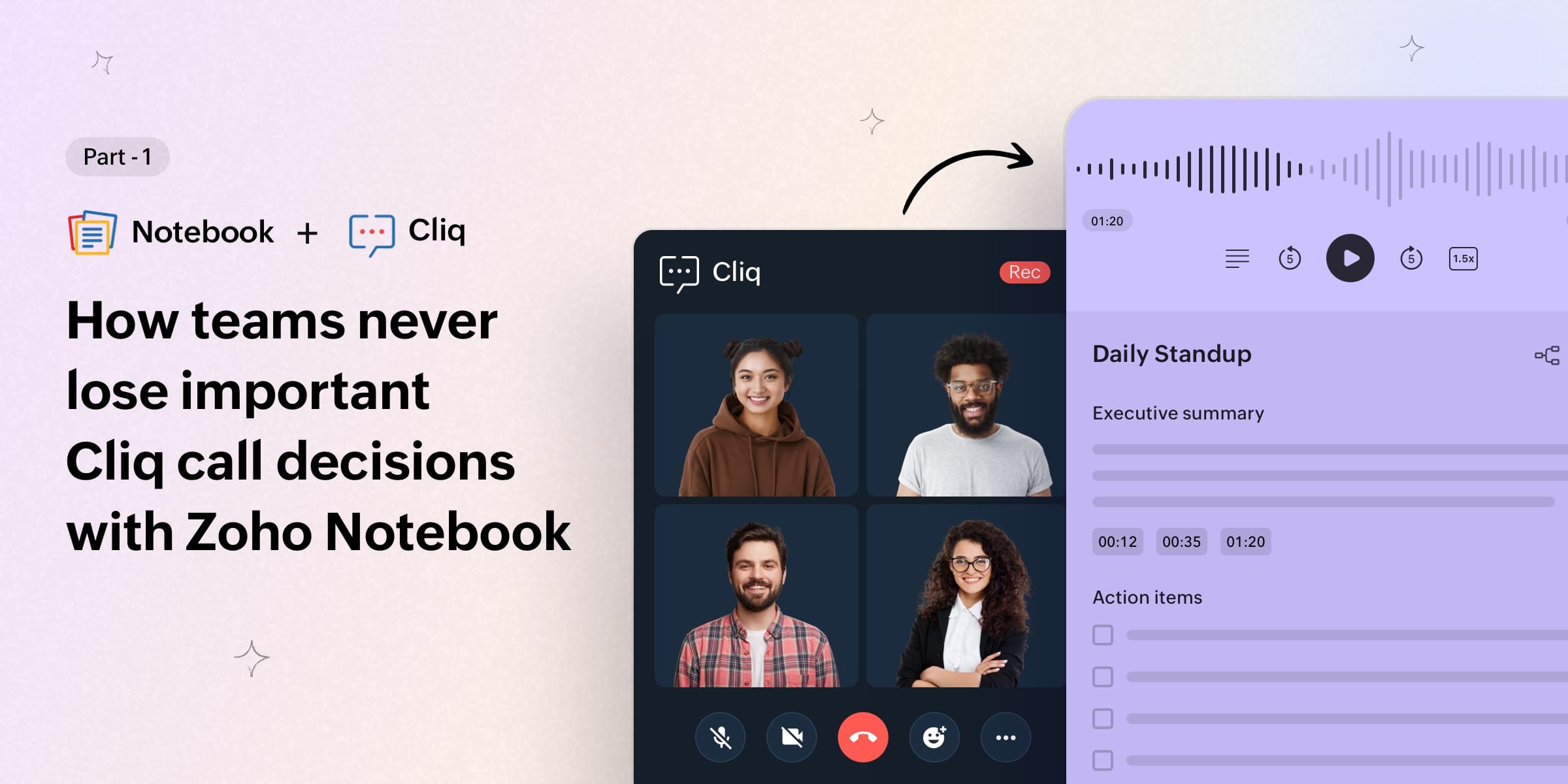
If your team runs on Cliq, you already know how much actually happens there. You jump on a quick call and somehow walk away with the entire quarter figured out. The real decisions, the real plans, the real breakthroughs all happen there, not in a document or a message thread.
The only problem is, most of it stays on the call. The moment everyone hangs up, it starts to blur. The decision that felt so clear ten minutes ago suddenly has three different versions.
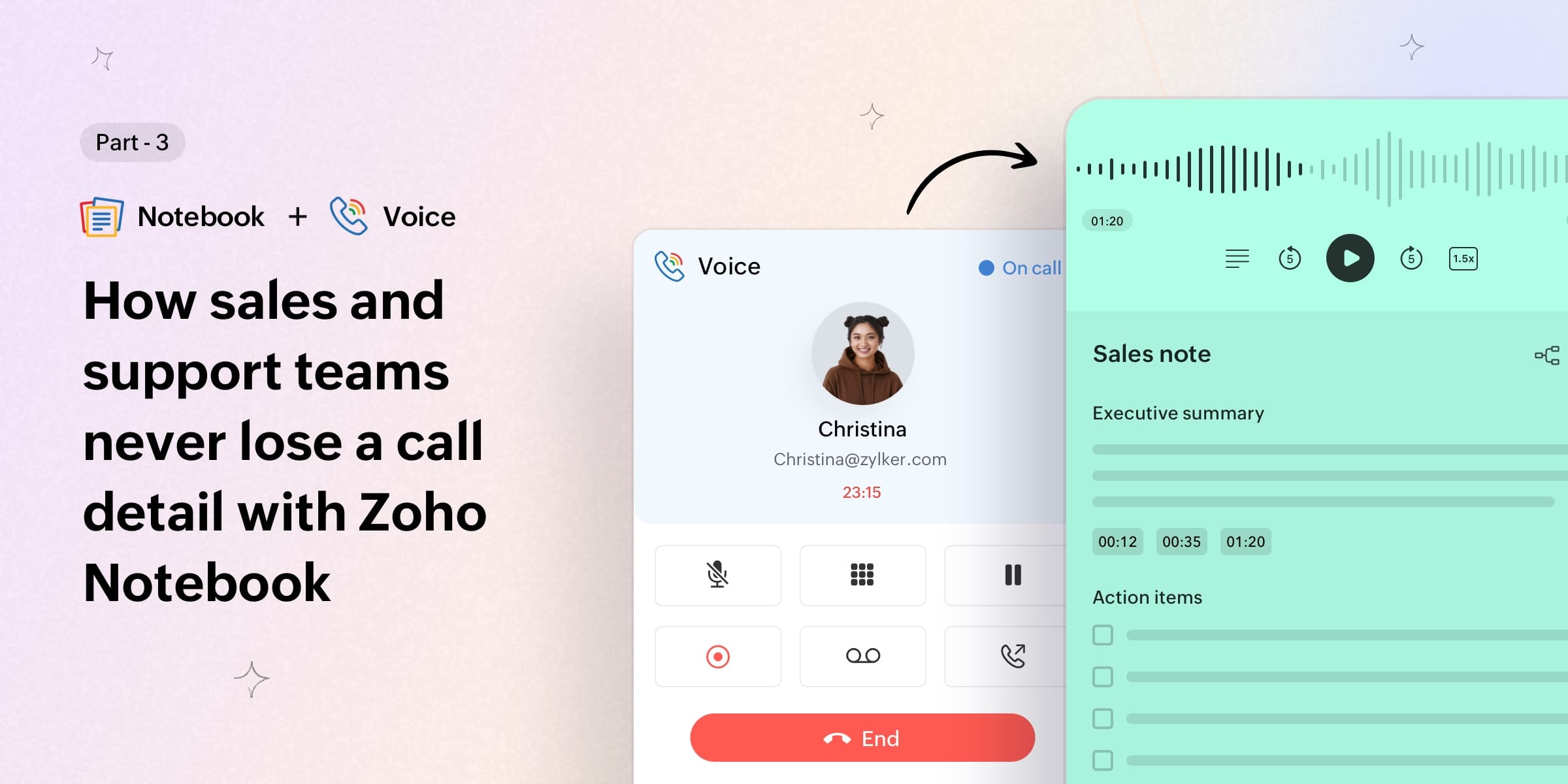
Zoho Notebook now fixes this directly. It automatically imports your Zoho Cliq call recordings, transcribes them, and stores everything as a structured, searchable notecard, with zero effort on your end after you hang up.
What happens after a Cliq call ends
Once you’ve turned on Auto Transcribe in Notebook and connected Cliq under Settings → Notebook AI → Integrations, the whole thing runs in the background.
You start a call in Cliq. You hit the record button. You have the conversation. You hang up.
Within the next hour (or sooner), there’s an Audio Card sitting in your Notebook with the full recording and a complete transcript. You’ll also get an email with a direct link so you can pull it up on any device, share it with someone who wasn’t on the call, or just have it somewhere obvious when you need it fast.
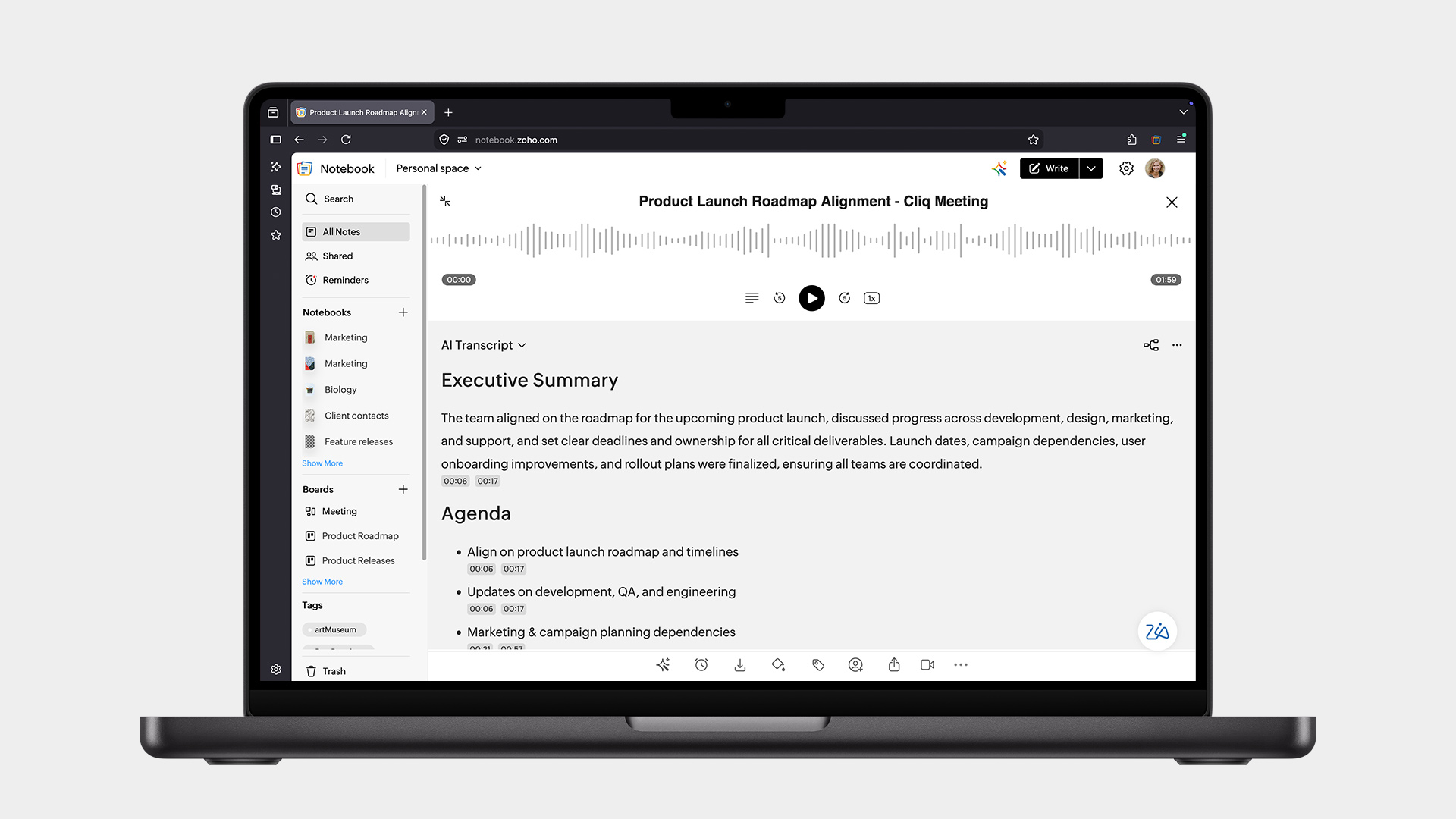
If an hour feels too long and you need it right away, there’s a Sync Now option inside Notebook AI settings that brings it in within minutes. It’s useful when you’re preparing a follow-up the same afternoon. Know more.
Who this makes the biggest difference for
This is going to land differently depending on how your team uses Cliq, but a few groups will feel it immediately.
Teams that work across time zones. When your morning stand-up is someone else’s end-of-day, async is just the reality. A searchable transcript means people who missed the call don’t have to ask three people to piece together what was discussed. They open the card, read it, and they’re caught up.
Project teams in active delivery. Sprint planning, retrospectives, client status calls—all are dense conversations with a lot of decisions packed into a short window. When everyone’s in execution mode, the last thing you want is to spend time reconstructing what was agreed on two days ago. The card is just there.
Sales and customer success teams. Every client conversation has details that matter later. Whether it’s a specific concern they mentioned, a deadline they named, or a commitment you made. Going back to exactly what was said, rather than what you think was said, changes how you follow up. It also makes handoffs between teammates significantly cleaner.
Managers and team leads. One-on-ones are where a lot of the real work happens. They involve growth conversations, feedback, and things people raise when they’re actually comfortable. Having a record isn’t about surveillance. It’s about not forgetting the thing someone trusted you enough to bring up, and actually following through on it.
It’s more than just a transcript
What lands in Notebook isn’t a wall of text. Each Cliq call recording becomes a structured notecard with the audio, full transcript, and formatting shaped by whichever template you’ve set as your default.
Notebook comes with built-in templates for the most common call types: stand-ups, sales calls, feedback sessions, and interviews. Customize any of them to fit your workflow, or build one from scratch. Once a template is set as your default, every transcript that comes in is already organized the way you want it, automatically.
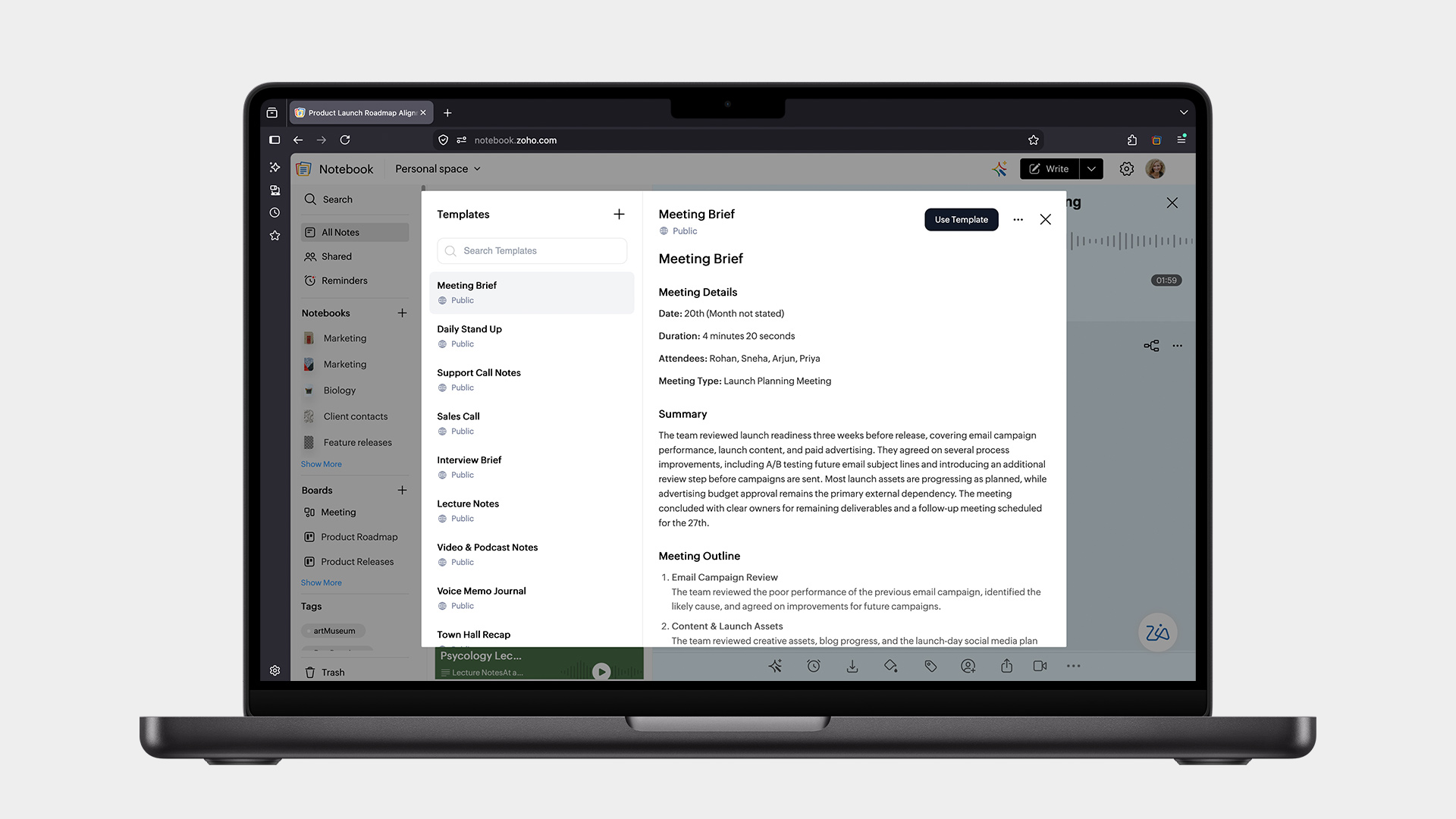
And because it all lives in Notebook, it’s searchable alongside everything else you’ve got in there. You’re not hunting through a folder of audio files or scrolling a long message thread trying to find something someone said three weeks ago. You type a phrase, it comes up.
A few things worth knowing before you start
You need to be the one who hits the record button. The integration imports recordings you started, so make sure you’re initiating the recording on calls that matter. Recordings started by someone else on the call won’t come through automatically. Instead, you can upload the recording manually.
Your accounts need to be on the same Zoho account. Cliq and Notebook need to be under the same Zoho account for the integration to connect.
Supported languages currently include English, Spanish, French, German, Italian, Dutch, Russian, and Hindi, with more on the way.
The feature is live for Notebook for Business, Pro Plus, and Zoho One users on the web app right now, with broader platform support coming soon. Check out the plans.
Getting started takes under a minute
Open the Zoho Notebook web app.
Go to Settings → Notebook AI.
Turn on Auto Transcribe.
Enable Zoho Cliq under Integrations.
The next Cliq call you record will find its way into your Notebook on its own, transcribed, structured, and searchable, without you doing anything else after you hang up.
Up next, we’ll walk through how the same integration works with Zoho Meeting, what it looks like when webinar recordings, demo calls, and remote stand-ups start landing in Notebook automatically. Haven't read the intro yet? Start here.
Have any questions or feedback? We’re always happy to hear from you at support@zohonotebook.com.
Happy note-taking!
Comments