From static PDFs to smarter workflows part 1: Unlocking full PDF editing in Zoho Workplace

Saving a document as a PDF often feels like reaching the finish line. But in reality, that’s usually where the real administrative marathon begins.
A date changes. A clause needs to be updated. An image needs to be replaced. A sensitive section has to be removed before sharing. A few pages need to be extracted. The document then needs information from employees, customers, or vendors. Perhaps it needs approvals and signatures from multiple people in a specific order.
Before long, you’ve spiraled into downloading, converting, editing, re-uploading, and chasing down approvals across half a dozen different apps.
What if saving a document didn’t mark the end of its usefulness?
What if you could continue editing it, reshape it for a new purpose, collaborate on it, turn it into an interactive form, collect information and signatures, and move the results through your business processes without constantly jumping from one application to another?
With Zoho PDF Editor and interactive document forms, static files transform into flexible, dynamic assets.
Instead of letting PDFs become static dead ends, Zoho Workplace keeps your documents moving seamlessly within your actual workflow.
1. When a PDF is final, until it isn’t
PDFs are often used when a document is ready to be shared in a fixed format. But “fixed” doesn’t always mean “finished forever.”
Traditionally, even a small change can mean finding the original source file or relying on a separate PDF editing tool, creating unnecessary friction.
With Zoho PDF Editor, you can store, access, edit, and share PDFs within Zoho Workplace, helping you make changes without sending the document on another software detour.
2. Fix what needs fixing
Sometimes, all you need is a quick correction.
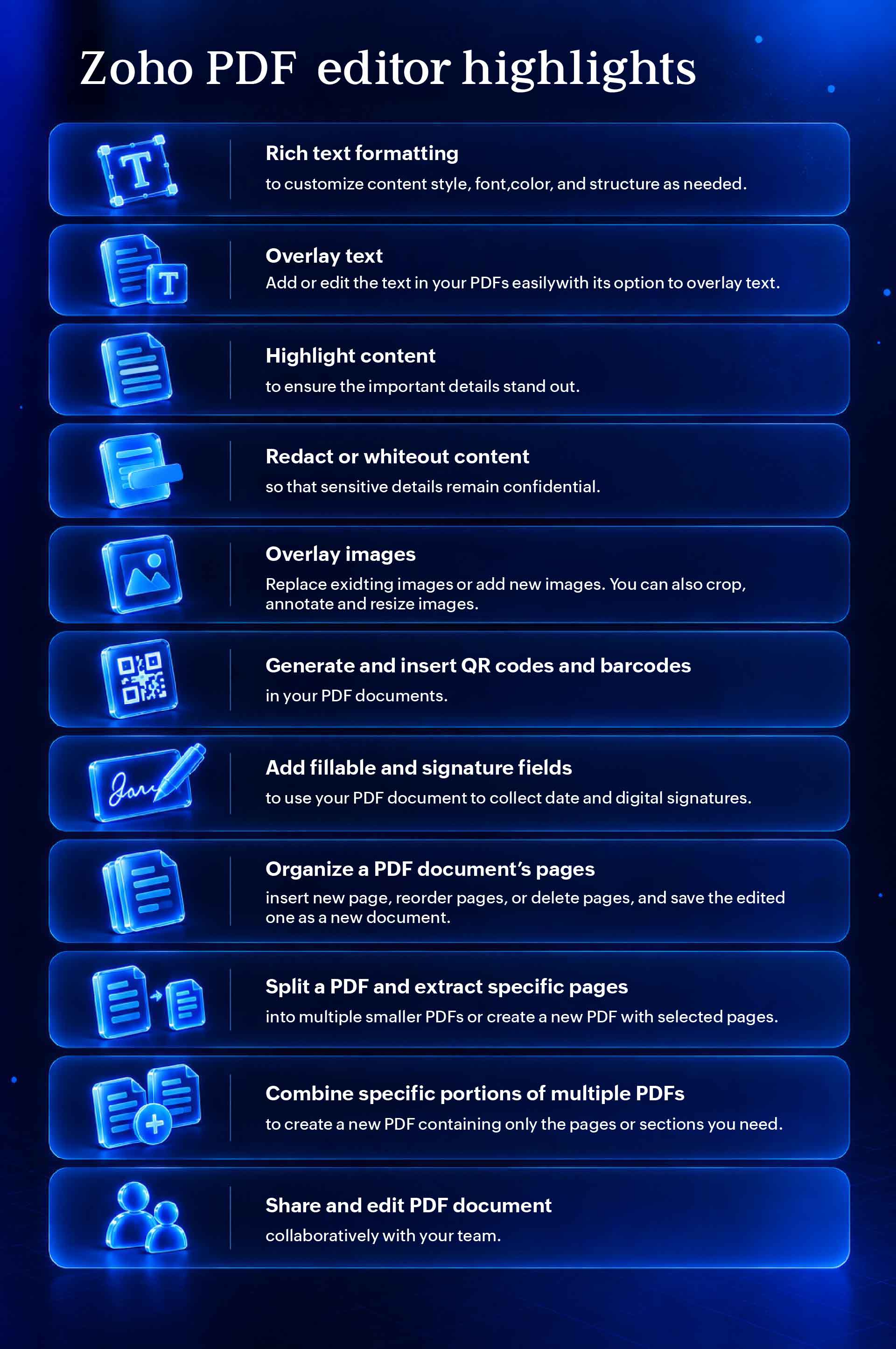
With Writer’s PDF editor, you can add or remove text from a PDF, use overlay text to update existing content, and customize the text with rich formatting options. Adjust the style, font, color, and structure to make the changes fit naturally into the document.
Need to draw attention to an important detail? Highlight it.
Need to update a date, correct a name, or revise a sentence? Make the change directly.
The benefit is simple: You don’t have to restart the document workflow for a minor update.
Moreover, when work doesn’t happen exclusively at a desk, that flexibility matters even more. You can edit PDFs from wherever work takes you, including when you need to work offline.
3. Share the document, not the information that shouldn’t leave
A document may contain internal comments, confidential details, personal information, or other content that shouldn’t be visible to every recipient.
Instead of recreating the document for a different audience, you can whiteout sensitive information before sharing it.
This can be particularly useful when teams need to prepare documents for external sharing.
A finance team may need to remove internal information from a report. An HR team may need to protect employee details. A legal or operations team may need to share only the relevant portions of a document.
The goal isn’t just to edit the PDF; it’s to share the right version with the right information.
4. When a text edit isn’t enough
Documents also change visually.
An old image may need to be replaced. A new image may need to be added. A screenshot may need to be cropped or resized. A visual element may need an annotation to provide additional context.
The PDF editor lets you overlay new images or replace existing ones, along with cropping, annotating, and resizing them as needed.
You can also generate and insert QR codes and barcodes directly into PDF documents.
By linking your documents directly to digital resources, real-time inventory, or external destinations, you ensure that your content stays relevant long after you hit Save.
5. Don’t work around pages you don’t need. Reshape the document.
Ever feel like you’ve got a fantastic document, but the structure is working against you?
Often, the problem isn’t what’s written on the page; it’s how the pages are assembled. You may only need a quick two-page section from a 50-page report, or to split a massive file into smaller chapters for different teams, or pull key sections from three separate files into one clean document.
Rebuilding everything from scratch is a massive time sink. Instead, take control of your document layout to fit your exact needs:
- Insert: Add missing sections or new updates exactly where they belong.
- Reorder: Drag and drop pages into a logical sequence that flows naturally.
- Delete: Strip away outdated info, cover pages, or unnecessary clutter.
- Save: Export your freshly customized layout as a brand-new file.
You can also split a PDF into smaller files or extract specific pages to create a new PDF. And when information is spread across multiple documents, you can combine selected portions to create a single PDF containing only the pages or sections you need.
Consider a few common scenarios:
- Extract the relevant sections of a long report before sharing it with a stakeholder.
- Split a large document into separate files for different teams.
- Remove outdated pages from a proposal and insert new ones.
- Combine relevant pages from several PDFs to create a customized document for a customer.
Instead of treating a PDF as something that can only be viewed or replaced, you can reshape it around the task at hand.
No internet? No problem.
With the Zoho PDF Editor available as a desktop app for Windows, Mac, and Linux, you can edit, annotate, and organize your PDF files anytime, anywhere, even without an active internet connection or while traveling.
Wrapping up: Keep the document in the flow of work
The real value of PDF editing isn’t just having more ways to modify a file. It’s reducing the number of interruptions around the file.
Think about the usual workflow. You edit a document in one app, export it to send to a teammate, wait for feedback, track down the latest version, and try to piece it all together. Every single handoff is a chance for things to stall out or get lost in translation.
Keeping PDF work within Zoho Workplace helps teams:
- Store, access, edit, and share PDFs from within their work environment.
- Reduce their dependence on separate and potentially expensive PDF editing software.
- Keep documents accurate and updated as changes arise.
- Make changes from wherever they work, including offline.
- Collaborate on PDF documents with others instead of managing endless versions through manual handoffs.
Of course, updating the file is often just step one. Documents aren’t static; they need responses, sign-offs, and active engagement to keep business moving forward.
In our next post, we’re unpacking Document Forms and how they turn everyday files into interactive, workflow-driven assets. Catch you in Part 2!


Comments