Stay with the caller, not the keyboard: Live Call Transcription and AI Notes Assistant in Zoho Voice

Every customer call asks your agents to do two jobs at once: listen closely and write things down. Type while the caller explains the problem, and details slip past. Leave the notes for later, and the next call is already ringing. Either way, the call record ends up thinner than the conversation it came from.
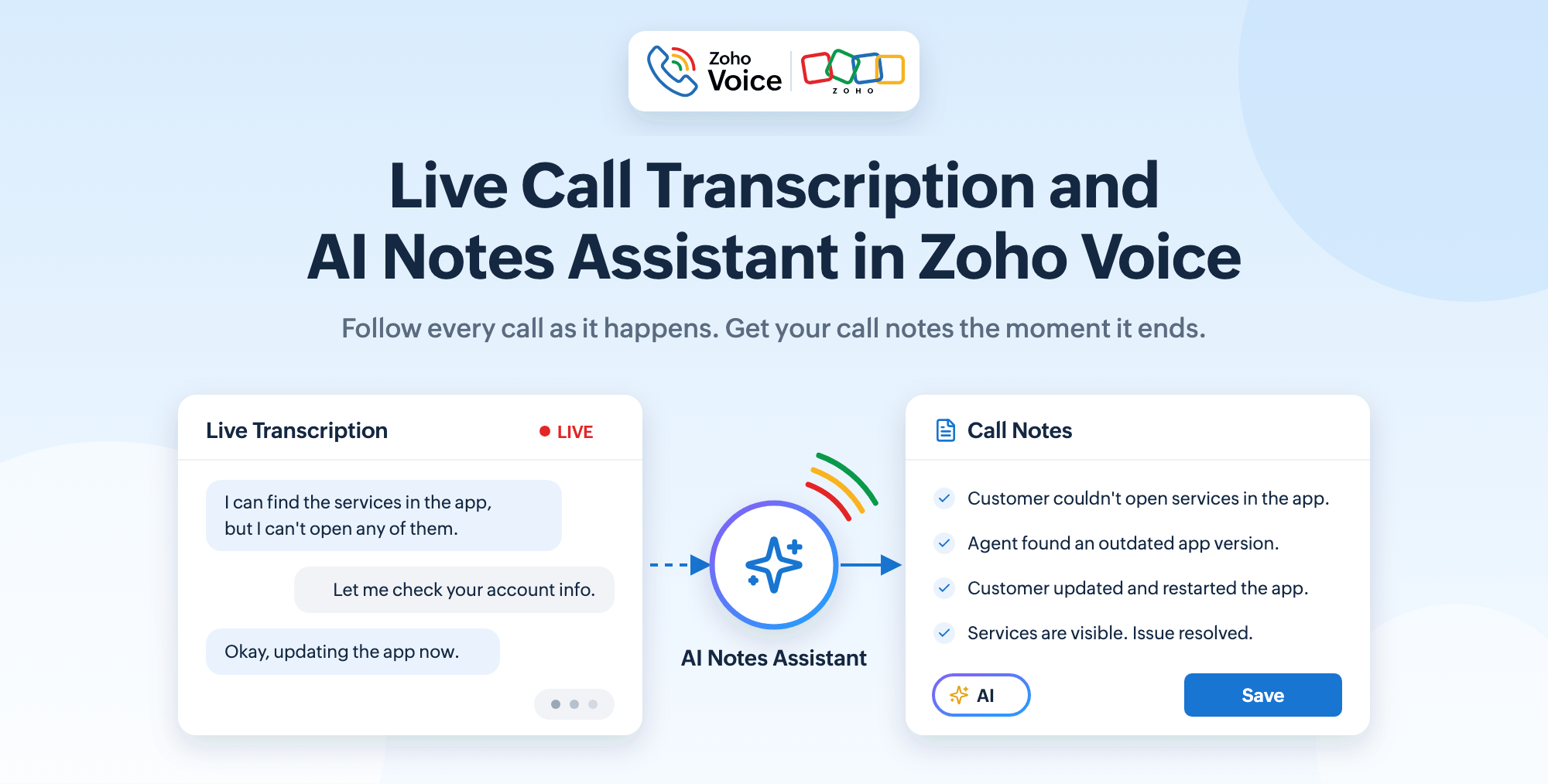
Zoho Voice now takes care of both jobs with two features that work together in ZDialer: Live Call Transcription, which shows the conversation as text while you talk, and AI Notes Assistant, which turns that conversation into a call summary once the call ends.
Introducing Live Call Transcription
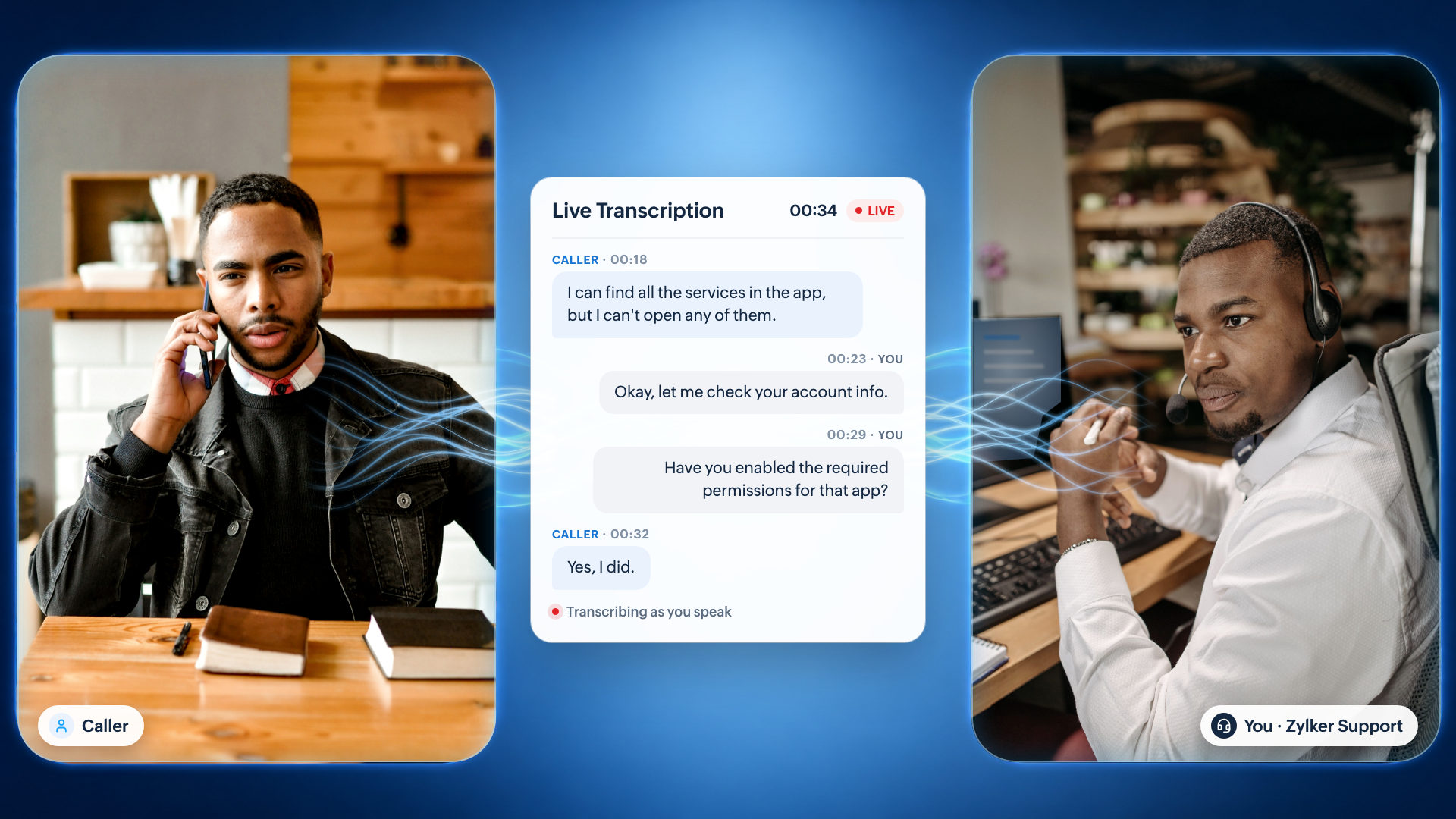
With Live Call Transcription, your calls are transcribed in real time, so you can follow the conversation as it happens. The transcript appears in ZDialer as soon as the call connects, with each line time-stamped and laid out as a thread between you and the caller.
From live conversations to actionable notes with AI Notes Assistant
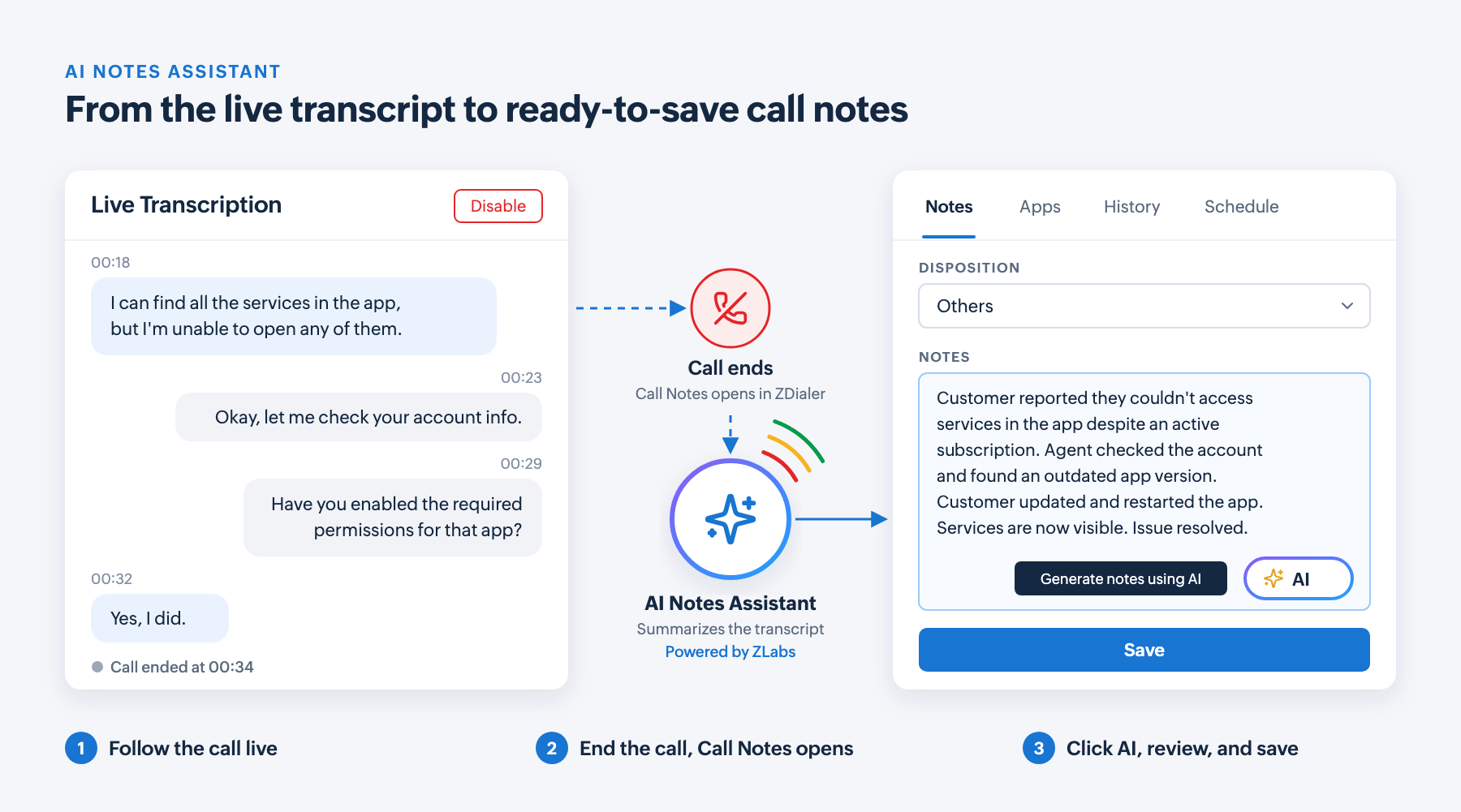
To take this up a notch, we've built a sidekick for the part of the call nobody looks forward to: the wrap-up. AI Notes Assistant, powered by ZLabs, uses the call transcript to write your call summary straight into Call Notes.
One click on the AI icon and the Notes section fills with a summary of what the caller reported, what was checked, and how the call ended. Read it, edit anything you'd phrase differently, pick a disposition, and save.
How it works
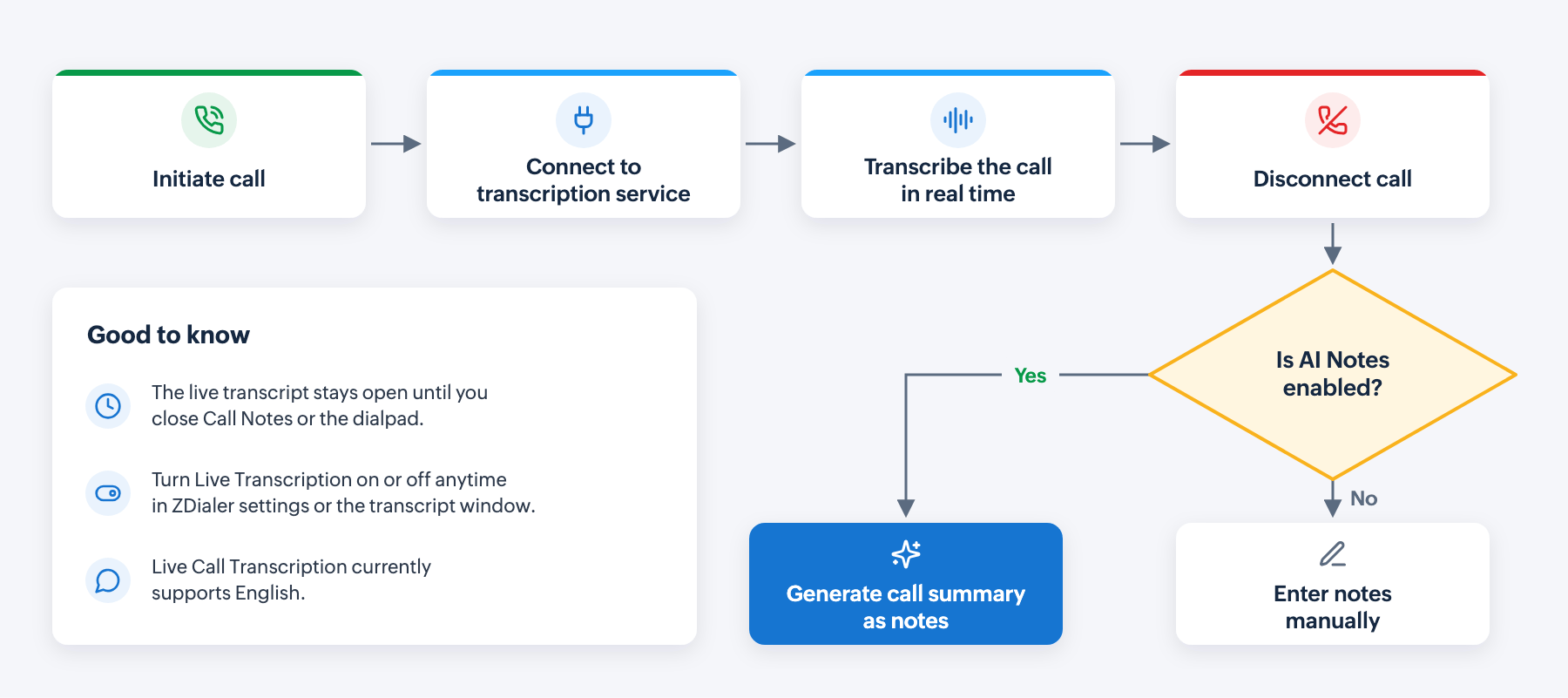
- Turn on transcription with the Transcription button in the dialer.
- As soon as the call connects, the live transcript appears in the dialer and updates in real time as you speak.
- The live transcript stays visible for as long as the call is active.
- When the call disconnects, the Call Notes window opens in ZDialer. The live transcript stays open until you close the Call Notes window or the dialpad, so you can refer back to it while you wrap up.
- If AI Notes is enabled for your organization, click the AI icon (Generate notes using AI). The call summary appears in the Notes section, ready for you to review and save. If it isn't enabled, enter your notes manually as usual.
Turn it on in ZDialer settings
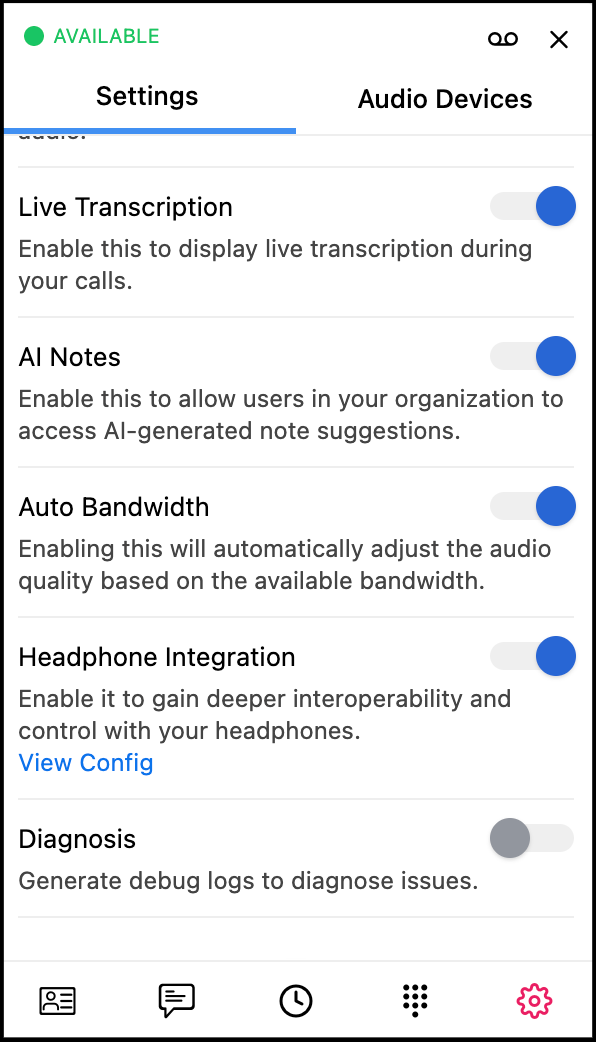
You can enable or disable Live Transcription for your account at any time from ZDialer's settings. You can also switch it off mid-call from the Live Transcription window with the Disable button.
The AI Notes setting lets users in your organization access AI-generated note suggestions. Once it's on, the AI icon appears in the Notes section of the Call Notes window.
Why it matters for your team
Stay present on the call: Agents listen to the caller instead of typing over them, and the conversation feels like one.
Catch what you missed: A time-stamped transcript sits beside the dialer, so there's no need to ask the caller to repeat an account detail or a step they already tried.
Wrap up faster: The call summary is drafted for you, so after-call work becomes a quick review instead of writing from memory.
Keep records clear: Notes come from what was actually said on the call, so they read clearly to the next person who picks up the customer's history.
Stay in control: AI Notes Assistant suggests the notes; you decide what's saved. Edit the summary freely before you click Save.
Now available in Zoho Voice
Live Call Transcription and AI Notes Assistant are now live in ZDialer. Turn them on in ZDialer's settings and let your next call write its own first draft. For detailed setup steps, refer to this help documentation.
Already using Call Intelligence for your recorded calls? Live Call Transcription brings the same clarity into the call itself, while it's still happening.

Comments