Single-folder archival in Zoho Mail: What you need to know

Email archival is the practice of moving emails from your active inbox or folders to a separate space. It helps keep your mailbox clutter-free while ensuring that archived emails remain accessible when you need to refer to them.
User-controlled email archival within the mailbox is different from administrator-controlled email archival, which is used for compliance and regulatory purposes.
In Zoho Mail, users have traditionally archived emails to keep their inbox and active folders clean. While this helped reduce clutter, the existing archival approach also came with its own challenges.
If you’ve been using Zoho Mail for a while, the way email archival works is evolving to address these challenges. The change will take effect when you choose to migrate to the new archival model. Until then, your existing archival experience will remain unchanged. Understanding what’s changing will help you make the most of your mailbox.
How the existing archival model works
In Zoho Mail’s existing archival model, emails are archived within the folder they originally belonged to. For example, if you archived an email from your Projects folder, it remains in that folder as an archived email and can be accessed using the View archived emails filter. This meant that archived emails were spread across your existing folders rather than collected in one place.
While this approach kept emails contextually grouped by folder, it also created a few challenges over time.
IMAP sync issues
When accessing Zoho Mail through third-party email clients using IMAP, archived emails didn’t always sync reliably. This was due to a state mismatch between Zoho Mail and the IMAP clients. When an email that had already synced with an IMAP client is archived in Zoho Mail, subsequent state changes to that email—including deletion—aren’t always synchronized with the email client. This led to inconsistencies across devices and email clients.
Storage visibility gaps
There’s no straightforward way to see how much storage your archived emails are consuming overall. Because archived emails are spread across multiple folders, it’s difficult for users and administrators to get a clear picture of the storage consumed by archived messages.
Administrative challenges
For organizations managing multiple accounts, the in-folder archival model makes it difficult to audit, report on, and manage archived emails at scale.
Single folder archival
Zoho Mail is moving to a single, dedicated Archive folder in your mailbox. Regardless of which folder an email is currently in, archiving it now moves it into this one unified location.
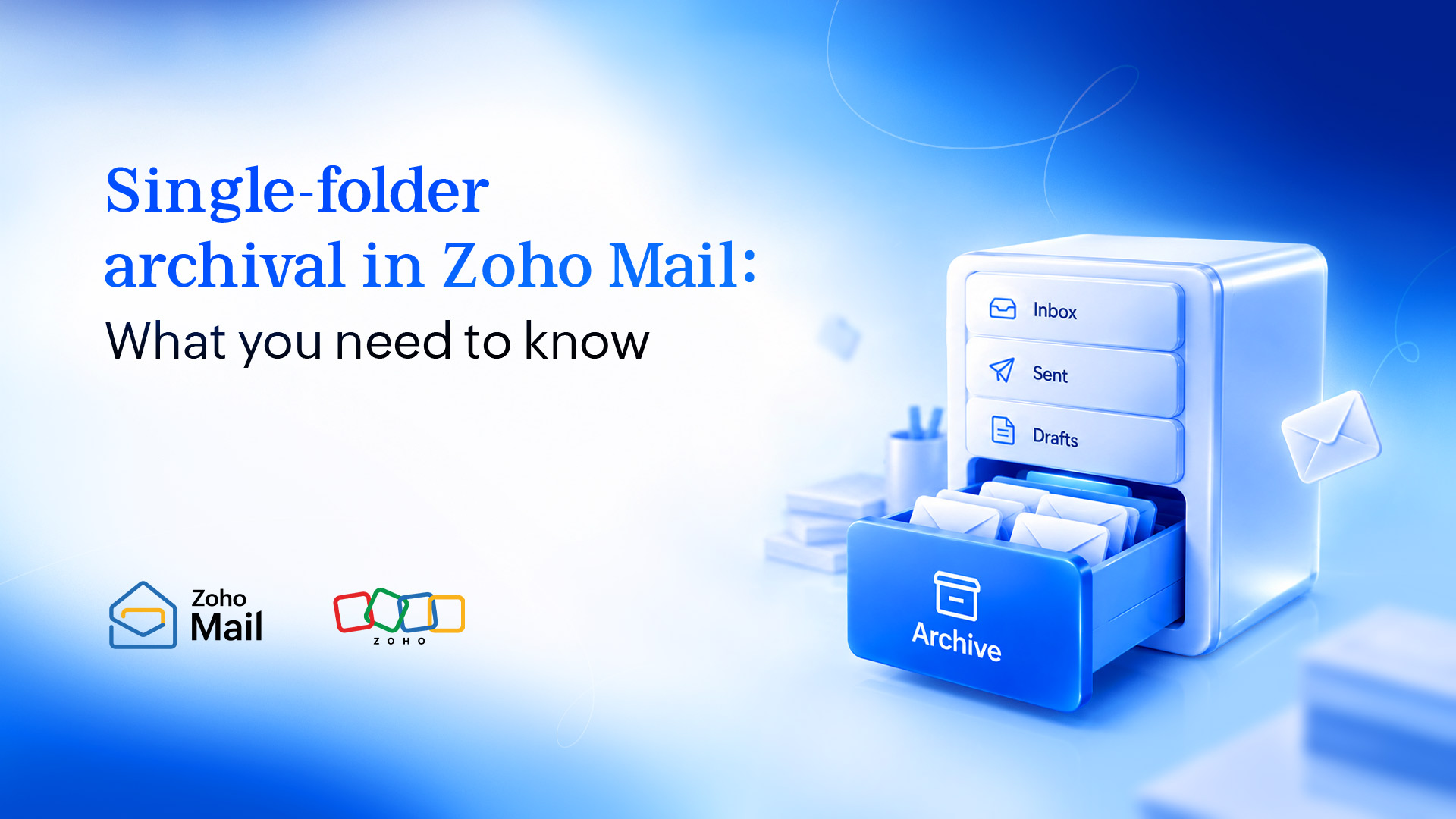
With single-folder archival the users will experience the following changes.
A consistent archive destination
Every archived email is moved to the Archive folder, making it easy to find, browse, and search archived content without hunting across multiple folders.
Accurate storage calculation
Because all archived emails are consolidated in one place, the calculation of storage space occupied by the archived emails can be calculated accurately and seamlessly.
Reliable IMAP sync
A dedicated archive folder is a standard method that IMAP clients recognize and sync easily. This eliminates the sync inconsistencies that existed with in-folder archival, so your archived emails now appear consistently across all email clients.
How does this affect Zoho Mail users?
New Zoho Mail users
If you’re a new Zoho Mail user, the single Archive folder is already your default. You don’t need to configure anything. Archiving any email automatically moves it to that folder.
Existing Zoho Mail users
If you’re an existing Zoho Mail user, your mailbox currently uses the old in-folder archival model. You have the option to migrate to the new model based on your preference. Until you migrate, your existing archived emails remain exactly where they are and continue to work as before.
What happens after migration
- All previously archived emails across your folders are moved into the single Archive folder.
- Going forward, any email you archive will go to this folder regardless of which folder it’s moved from.
- IMAP clients connected to your account will reflect the new structure.
The migration is a one-time action and can be done from Zoho Mail settings based on your preference.
Refer to our step-by-step help guide to learn more about single folder archival and the steps to migrate to the new model.
FAQ
Will I lose any archived emails when I migrate?
No. You won’t lose any archived emails during migration. All archived emails from the folders you select for migration will be moved to the Archive folder. If a folder containing archived emails isn’t selected for migration, those emails will be unarchived and remain in their respective folders.
Can I still search archived emails after migration?
Yes. You can still search for the archived emails using the In folder: Archive filter in the search field.
Will this affect my third-party email client (Outlook, Thunderbird, Apple Mail, etc.)?
Once the migration is done, a new folder will be created containing all of the archived emails across folders. This folder will be synced with third-party email clients. You can choose which folder to sync via IMAP from Zoho Mail’s Folder settings.
Can I undo the migration once it’s done?
No. You cannot revert to the old model once the migration is done.
Can I create my own archive conditions?
Yes. You can create custom archive policies from Zoho Mail settings based on preferred conditions that include the date or age of the email.


Comments